A Comprehensive Look at Server Hardware: Components, Bottlenecks and Workload Requirements
Server hardware determines how reliably a hosting environment processes requests, stores data, handles network traffic and runs applications under sustained workloads. Unlike a typical desktop PC, a production server must often support continuous operation, predictable performance, remote administration and component replacement with minimal downtime.
Understanding server hardware means looking beyond individual specifications. A processor with many cores cannot compensate for insufficient RAM, a fast NVMe drive cannot eliminate a network bottleneck, and redundant power supplies cannot protect against every power or cooling failure.
This guide explains the major server hardware components, the enterprise features that distinguish servers from consumer PCs, the symptoms of common hardware bottlenecks, and how to choose a configuration for web hosting, databases, storage, streaming and virtualization.
Server Hardware Components at a Glance
| Component | What it affects | Common bottleneck symptoms |
|---|---|---|
| CPU | Application processing, concurrent requests and computation | High sustained CPU utilization, slow application responses and growing request queues |
| ECC RAM | Working memory, application capacity and error detection/correction | Memory exhaustion, swapping, OOM kills or hardware memory errors |
| Storage drives | Latency, IOPS, throughput and capacity | High disk latency, slow queries, I/O wait and storage queues |
| RAID controller or HBA | Drive management, redundancy and storage connectivity | Degraded arrays, controller errors or reduced storage performance |
| Motherboard and PCIe | Component compatibility, expansion and data connectivity | Unavailable expansion slots, bandwidth constraints or compatibility issues |
| BMC/IPMI | Remote management, health monitoring and recovery | Limited remote diagnostics or inability to manage a server outside the OS |
| Power supplies | Electrical delivery and power redundancy | Unexpected shutdowns, PSU alerts or power-related instability |
| Cooling system | Temperature control and sustained performance | Thermal throttling, overheating alerts or shutdowns |
| Network interface card | Network throughput, latency and connectivity | Packet drops, interface saturation or network throughput limits |
1. Central Processing Unit (CPU): Processing Power and Concurrency
The central processing unit (CPU) executes application instructions, processes requests and performs calculations. In a dedicated server, CPU selection affects how many concurrent workloads the system can handle and how quickly it can complete individual tasks.
However, CPU performance is not determined by clock speed alone. Core count, per-core performance, cache, memory bandwidth, supported instruction sets, power limits and the application’s ability to use multiple threads all influence the result.
CPU cores versus clock speed
A processor with more cores can help when many independent requests or virtual machines need processing simultaneously. A processor with stronger per-core performance may be preferable for applications that depend heavily on one or a small number of threads.
- High core count: Useful for multi-tenant hosting, virtualization and highly parallel workloads.
- Strong per-core performance: Important for latency-sensitive applications, some database operations and workloads with limited parallelism.
- Memory bandwidth: Matters when many cores access large datasets simultaneously.
- Cache capacity: Can reduce access to slower memory for workloads with reusable data.
Intel Xeon and AMD EPYC server processors
Intel Xeon and AMD EPYC are examples of processor families designed for server and data-center workloads. The exact capabilities depend on the processor generation and model.
When comparing configurations, check the number of cores, supported memory capacity, memory channels, PCIe generation and lane count, power requirements and platform compatibility. A newer processor is not automatically the best choice if the application benefits more from additional RAM, faster storage or better per-core performance.
How to identify a CPU bottleneck
Look for sustained CPU saturation, long run queues and slow application responses that correlate with processor load. On Linux, useful initial checks include:
lscpu
uptime
top
The uptime command reports load averages, which should be interpreted alongside the number of CPU cores and the workload. A high load average can also reflect tasks waiting on I/O, so it does not prove that the CPU alone is the problem.
For workloads that consistently saturate available CPU capacity, consider a processor with more suitable cores or stronger per-core performance, workload optimization, or distributing traffic across additional servers.
2. Server RAM: Capacity, ECC and Memory Channels
Random access memory (RAM) holds the data and instructions that applications need to access quickly. Unlike persistent storage, RAM loses its contents when power is removed.
Insufficient memory can cause swapping, application slowdowns and process termination. For hosting providers, RAM capacity also determines how many websites, application workers, databases or virtual machines a server can support comfortably.
Why ECC memory matters
Error-correcting code (ECC) memory can detect and correct certain types of memory errors. It is widely used in server platforms where data integrity and continuous operation matter.
ECC is not a guarantee against every memory fault, and its support depends on the processor, motherboard and memory configuration. Confirm that the complete platform supports the specific ECC memory type before purchasing components.
Memory capacity versus memory speed
More RAM is beneficial when the workload needs it, but installing additional memory does not automatically make every application faster. Memory speed, channel configuration and the platform’s supported population rules also affect performance.
For example, a database server that keeps frequently accessed data in memory may benefit from additional capacity. A virtualization host may need enough RAM to support all guest operating systems without excessive swapping. A lightly used static website may need far less.
How to identify a memory bottleneck
free -h
vmstat 1 5
ps -eo pid,comm,%mem,%cpu --sort=-%mem | head -15
Check available memory, swap activity and the processes consuming the most resources. If Linux is terminating processes under memory pressure, inspect the kernel journal:
sudo journalctl -k --since "2 hours ago" --no-pager | grep -Ei 'oom|out of memory|killed process'Persistent memory pressure may require workload tuning, additional RAM or a more appropriate server configuration. Swap can provide a buffer, but relying on heavy swapping for a latency-sensitive production workload usually indicates that memory capacity or application behavior needs attention.
3. Server Storage: HDD, SATA SSD, SAS and NVMe
Storage determines where operating systems, databases, websites, backups and customer files reside. The right choice depends on the balance between capacity, latency, throughput, endurance, redundancy and cost.
| Storage type | Strengths | Typical use cases |
|---|---|---|
| HDD | Cost-effective capacity for large datasets | Archives, backups and bulk file storage |
| SATA SSD | Lower latency than HDDs and broad compatibility | General-purpose hosting and moderate database workloads |
| SAS SSD | Enterprise drive options and compatibility with SAS storage systems | Enterprise storage arrays and supported server platforms |
| NVMe SSD | High throughput and low-latency access through PCIe | Busy databases, high-I/O applications and virtualization |
NVMe versus SATA and SAS
SATA and SAS drives connect through storage interfaces designed for their respective ecosystems. NVMe is a storage protocol designed for non-volatile memory devices connected over PCIe.
NVMe drives can provide higher throughput and lower latency than many SATA SSDs, but actual performance varies by model, workload, drive capacity, queue depth, cooling and server configuration. A fast drive will not necessarily improve an application that is limited by CPU, memory or network performance.
For a database server with frequent random reads and writes, storage latency and IOPS can be particularly important. For an archive server, capacity and cost per terabyte may matter more than peak performance.
What are IOPS and storage throughput?
- IOPS: The number of input/output operations completed per second.
- Throughput: The amount of data transferred per second, commonly measured in MB/s or GB/s.
- Latency: The time required to complete an individual I/O request.
These metrics describe different aspects of performance. A storage device may deliver high sequential throughput but perform differently under small, random database operations.
How to identify a storage bottleneck
lsblk
df -h
iostat -xz 1 5
The iostat command is supplied by the sysstat package on many Linux distributions. Install it through your distribution’s package manager if it is unavailable.
Inspect device latency, throughput and queue behavior alongside application metrics. High I/O wait can indicate storage contention, but it should be investigated in context rather than treated as proof of a failing drive.
For storage-heavy deployments, explore our storage server solutions and compare the available drive configurations against your capacity and performance requirements.
4. RAID Controllers and HBAs: Protecting and Connecting Storage
Drive selection is only part of storage design. A server must also connect its drives to the system and, where required, provide redundancy against drive failure.
What is RAID?
RAID combines multiple drives into an array to provide different combinations of redundancy, capacity and performance. Common configurations include:
- RAID 0: Distributes data across drives for performance and capacity, but provides no drive-failure redundancy.
- RAID 1: Mirrors data across drives. Usable capacity is typically equivalent to one drive in a two-drive mirror.
- RAID 5: Uses distributed parity and can tolerate one drive failure, subject to correct array operation and recovery.
- RAID 6: Uses dual parity and can tolerate two drive failures in the array.
- RAID 10: Combines mirroring and striping, offering redundancy and strong performance at the cost of additional drive capacity.
RAID is not a backup. It does not protect against every form of data loss, such as accidental deletion, ransomware, filesystem corruption or a wider server failure. Maintain independent backups and test recovery procedures.
Hardware RAID versus software RAID
A hardware RAID controller manages supported arrays through a dedicated controller. Software RAID uses the operating system to manage the array. Each approach has trade-offs in management, compatibility, recovery and performance.
Choose a controller based on drive compatibility, cache behavior, power-loss protection, monitoring, recovery tools and operating-system support. Do not assume every RAID controller has protected write-back cache; verify the specific model and its protection mechanism.
What is an HBA?
A host bus adapter (HBA) connects the server to storage devices. SAS HBAs are commonly used to connect SAS or SATA drives, often in a mode that exposes individual drives to the operating system or a software-defined storage system.
An HBA is not the same thing as a RAID controller, although some controllers support both RAID and HBA or pass-through modes. Choose the operating mode that matches the intended storage architecture.
5. Motherboard, PCIe Lanes and NUMA
The motherboard connects the CPU, memory, storage interfaces, network cards and other expansion devices. In server hardware, motherboard selection also determines platform compatibility, expansion capacity, remote-management support and many upgrade options.
PCIe lanes and expansion capacity
PCI Express (PCIe) provides high-speed connections for devices such as NVMe SSDs, high-speed NICs, GPUs and storage controllers. The available lane count and PCIe generation affect the potential bandwidth available to these devices.
For example, a server designed for multiple NVMe drives and 25GbE or 100GbE networking needs enough PCIe connectivity to support those devices without creating avoidable bottlenecks. Some lanes are supplied by the CPU and others by the platform chipset, depending on the system design.
Before buying a server, check the motherboard manual for slot wiring, supported PCIe generations, lane sharing and restrictions when multiple slots are populated.
What is NUMA?
Non-Uniform Memory Access (NUMA) is a memory architecture in which processors or CPU sockets have different access costs to different regions of memory. Access to memory local to a CPU or NUMA node is generally faster than access to remote memory.
NUMA matters particularly in multi-socket servers and some high-core-count systems. Workloads that are poorly aligned with memory placement can experience additional latency or reduced throughput even when the system has enough total RAM.
Applications, hypervisors and operating systems can use NUMA-aware scheduling and memory allocation to improve locality. However, the best configuration depends on the workload and platform, so benchmark representative applications before changing NUMA settings.
6. BMC and IPMI: Remote Server Management
A server may need troubleshooting even when its operating system is unresponsive or the network services have failed. A Baseboard Management Controller (BMC) provides a separate management path on supported systems.
IPMI (Intelligent Platform Management Interface) is a standard associated with out-of-band server management. Many modern server platforms also offer web-based remote management, remote console access, power control, sensor readings and firmware management through vendor-specific implementations.
Depending on the hardware, out-of-band management can help administrators:
- Inspect hardware health and sensor readings.
- View a remote console during boot or operating-system failure.
- Power-cycle an unresponsive server.
- Review hardware event logs.
- Manage supported firmware and remote-media functions.
These functions are valuable for dedicated-server operations because administrators can investigate many problems without physically accessing the machine.
Security note: Keep BMC management interfaces on a restricted management network or VPN where possible. Use unique credentials, update firmware, disable unnecessary services and avoid exposing management interfaces directly to the public internet.
7. Power Supply Units: Redundancy and Efficiency
The power supply unit (PSU) converts incoming electrical power into the voltages required by the server’s components. CPU, RAM, storage, fans, expansion cards and accelerators all contribute to total power demand.
When selecting a PSU, consider the system’s expected load, peak demand, expansion plans, efficiency and compatibility with the chassis.
Why redundant PSUs matter
Many enterprise servers support two or more power supplies. In a suitable redundant configuration, one PSU can continue supplying the server if another fails.
Redundancy only works as intended when the hardware supports the chosen configuration and the power sources are arranged appropriately. Where possible, connect redundant PSUs to separate supported power-distribution paths so that a single upstream failure is less likely to take down the server.
Two power supplies connected to the same failing power source do not provide complete power-path redundancy. Redundant PSUs also do not replace data-center backup power, appropriate circuit capacity or environmental monitoring.
8. Cooling Systems and Thermal Management
Server components generate heat during operation. The cooling system must remove that heat to keep processors, memory, storage and power components within their supported operating ranges.
Rack servers are designed around chassis airflow, fan control, heatsinks and the airflow characteristics of the rack. Higher-density systems may require carefully engineered air cooling or liquid-cooling solutions.
Cooling requirements depend on the processor’s power characteristics, storage and expansion-card configuration, chassis design, inlet temperature and workload.
Signs of a cooling problem
- CPU temperatures repeatedly approach thermal limits.
- Processors reduce frequency under sustained load.
- Hardware sensors report fan or temperature alerts.
- The system shuts down or becomes unstable during heavy workloads.
- Fan speeds remain unusually high under normal ambient conditions.
Investigate the hardware sensors, fan status, airflow obstructions and data-center inlet temperature. Do not disable thermal protection to keep a server running; resolve the cooling problem instead.
9. Network Interface Cards: 1GbE, 10GbE, 25GbE and 100GbE
The network interface card (NIC) connects the server to the network. NIC selection affects available throughput, latency, supported media, offload capabilities and compatibility with the data-center switching infrastructure.
| Network speed | Approximate raw line rate | Common use cases |
|---|---|---|
| 1GbE | 1 Gbit/s | Management networks, light workloads and basic connectivity |
| 10GbE | 10 Gbit/s | Busy hosting servers, network storage and high-traffic applications |
| 25GbE | 25 Gbit/s | High-density hosting, storage networks and data-center workloads |
| 100GbE | 100 Gbit/s | High-throughput storage, virtualization clusters and large-scale data transfer |
These are nominal link rates, not guaranteed application throughput. Protocol overhead, packet sizes, CPU limitations, storage speed, switch capacity and traffic patterns all affect actual performance.
How to choose the right NIC
Consider more than the advertised port speed. Check whether the NIC supports the required Ethernet standard, transceiver or cable type, PCIe generation, driver and operating system. Some workloads may also benefit from supported features such as checksum offload, receive-side scaling or virtualization-related network offloads.
A 100GbE interface is not automatically useful if the server’s storage and CPU cannot sustain the traffic. Similarly, a 10GbE port does not guarantee 10Gbps of internet bandwidth; the provider’s network service, routing and traffic policy also matter.
If your application needs high network throughput, compare our 10Gbps dedicated server options against the traffic volume and connectivity requirements of the workload.
10. Hot-Swap Bays and Serviceability
Hot-swap drive bays allow supported drives to be removed or replaced while the server remains powered on, provided the controller, backplane, operating system and storage configuration support the operation.
This can reduce maintenance downtime in redundant storage configurations. However, hot-swap capability does not mean every drive can be removed at any time without risk.
Before replacing a drive, confirm its identity, check the array status, verify that redundancy is healthy and follow the controller or storage software’s replacement procedure. Removing the wrong drive or replacing a drive during an already degraded array can cause data loss.
Serviceability also includes accessible fans, replaceable PSUs, clearly identified drive bays and hardware diagnostics that help technicians identify a failing component quickly.
11. Choosing Server Hardware for Different Workloads
The best server configuration depends on what the system is expected to do. Prioritize the components that directly influence the workload rather than buying the largest specification in every category.
| Workload | Prioritize | What to watch |
|---|---|---|
| Web hosting | Balanced CPU, sufficient ECC RAM, reliable SSD/NVMe storage and appropriate network capacity | Concurrent requests, PHP workers, memory pressure, disk latency and traffic peaks |
| Database server | Memory capacity, storage latency/IOPS, CPU performance and dependable storage design | Query latency, cache misses, I/O wait, write latency and memory pressure |
| Storage server | Drive capacity, HBA/controller compatibility, redundancy, PCIe connectivity and network throughput | Drive health, array rebuild time, throughput, latency and backup/recovery requirements |
| Streaming server | Network capacity, sustained storage throughput and sufficient CPU for the media workflow | Concurrent streams, egress utilization, disk throughput and encoding requirements |
| Virtualization host | CPU cores, ECC RAM capacity, memory bandwidth, PCIe expansion and reliable storage | Guest memory pressure, CPU contention, storage latency and NUMA locality |
Web hosting
For a server running many websites, balanced resources are usually more useful than an extreme specification in one component. CPU capacity supports concurrent requests, RAM supports application workers and caching, and SSD/NVMe storage can reduce I/O latency. Network capacity must also match traffic demand.
Databases
Database workloads vary considerably. Some benefit from large amounts of RAM for caching, while others are constrained by storage latency, transaction throughput or CPU-intensive queries. Use query metrics and storage measurements to determine the actual limitation.
Storage and backup services
Storage servers need a suitable combination of drive capacity, fault tolerance, controller compatibility and network throughput. HDDs may be appropriate for large sequential datasets, while SSDs and NVMe can be valuable for latency-sensitive or high-IOPS workloads.
Plan for backup capacity, drive failures, array rebuilds and recovery time. Redundancy alone is not a backup strategy.
Streaming and high-bandwidth delivery
Streaming workloads place sustained demands on network egress and storage. The required server specification depends on the number of concurrent viewers, bitrate, media format, caching strategy and whether the server performs live transcoding.
For high-throughput delivery, a suitable network connection is important, but so are storage throughput, CPU capacity and the provider’s actual bandwidth policy. Explore our 10Gbps dedicated server options if the workload requires high network capacity.
Virtualization
Virtualization allows one physical server to run multiple virtual machines. The host needs enough CPU capacity, memory and storage performance to handle the combined workload of its guests.
ECC memory, reliable storage, remote management and sufficient PCIe connectivity are especially useful in this environment. Avoid overcommitting resources without monitoring actual demand and understanding the consequences for workload performance.
12. How to Identify a Server Hardware Bottleneck
Before upgrading a server, establish which resource is actually limiting performance. Symptoms often overlap, so combine operating-system metrics with application-level monitoring and hardware health information.
| Observed symptom | Possible cause | What to investigate |
|---|---|---|
| Slow requests during peak traffic | CPU saturation, application limits or upstream delays | CPU utilization, run queue and application response times |
| Processes killed or heavy swapping | Insufficient RAM or a memory leak | Available memory, swap activity and kernel OOM logs |
| Slow database queries | Storage latency, cache misses, CPU pressure or query inefficiency | Database metrics, I/O latency, memory and query plans |
| Slow file transfers | Network saturation, storage limits or protocol overhead | Interface throughput, packet drops and storage throughput |
| Performance falls under sustained load | Thermal or power limits | Hardware sensors, fan alerts and CPU frequency |
| Drive alerts or degraded RAID | Drive failure or controller issues | Drive health, controller logs and array status |
| Unresponsive server after OS failure | Limited remote-management access | BMC/IPMI reachability and hardware event logs |
Useful initial Linux commands include:
lscpu
free -h
lsblk
df -h
ip -s link
uptime
These commands provide basic information about CPU, memory, storage and network interfaces. They do not replace dedicated hardware-management tools, storage-controller diagnostics or detailed monitoring.
Conclusion: Build Around the Workload, Not Just the Specifications
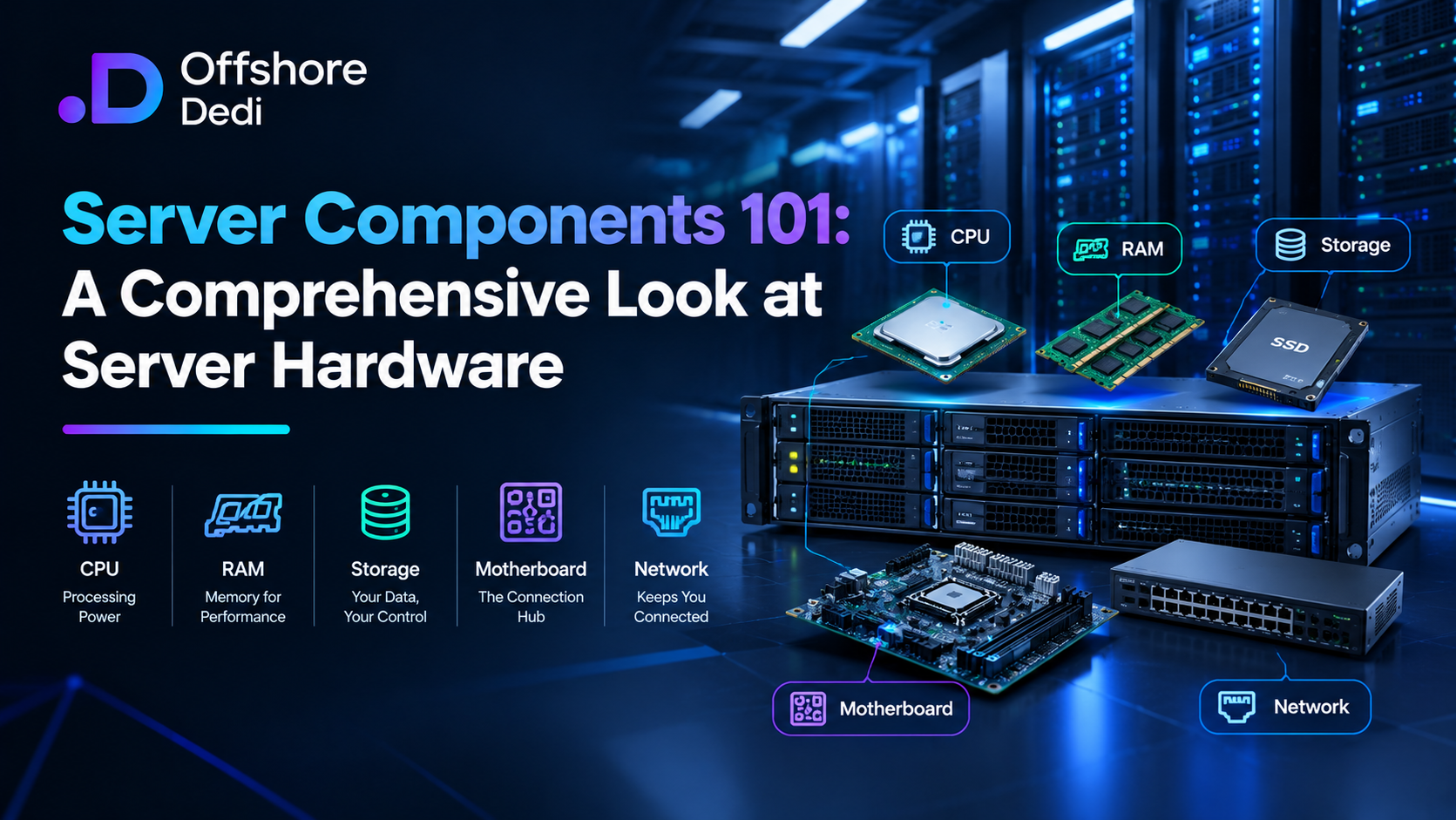
Server hardware works as an interconnected system. CPU determines processing capacity, RAM supports active workloads, storage affects data access, the motherboard and PCIe layout determine expansion, and the network interface defines the server’s available link capacity. ECC memory, redundant PSUs, hot-swap bays and BMC/IPMI improve reliability and manageability when the platform supports them.
The right configuration depends on the workload. Web hosting benefits from balanced resources, databases often need careful memory and storage planning, storage servers require a suitable drive and redundancy architecture, streaming depends heavily on sustained throughput, and virtualization demands enough resources to support multiple guests reliably.
When comparing dedicated servers, evaluate the complete configuration rather than focusing on CPU model or RAM capacity alone. Consider storage type, network connectivity, remote management, redundancy, upgrade options and the monitoring needed to identify bottlenecks before they affect customers.
Explore our dedicated server solutions to compare server configurations against your workload, performance and infrastructure requirements.
Frequently Asked Questions
What are the main components of a server?
The main components include the CPU, RAM, motherboard, storage drives, power supplies, cooling system and network interface cards. Enterprise servers may also include ECC memory, redundant PSUs, RAID controllers or HBAs, hot-swap bays and BMC/IPMI remote management.
Why is ECC RAM important in servers?
ECC memory can detect and correct certain memory errors, helping improve data integrity and reliability. Support depends on the processor, motherboard and memory configuration.
Is NVMe better than SATA SSD for a server?
NVMe can provide higher throughput and lower latency, making it useful for many high-I/O workloads. SATA SSDs can still be suitable for general hosting and applications that do not require NVMe-level performance.
What is the difference between RAID and an HBA?
RAID combines drives into an array to provide selected performance, capacity and redundancy characteristics. An HBA connects the server to storage devices and commonly exposes individual drives to the operating system. Some controllers support both RAID and HBA modes.
Is a 10Gbps NIC enough for a hosting server?
It depends on traffic volume, concurrent users, storage throughput, CPU capacity and the network service supplied by the provider. A 10GbE port has a nominal line rate of 10 Gbit/s, but actual application throughput will be lower and may be limited elsewhere in the system.