Softaculous makes it easy to install and manage web applications from a hosting control panel such as cPanel. However, installation failures, license errors, incompatible PHP versions, permission problems, failed updates and backup issues can prevent it from working as expected.
The key to resolving Softaculous problems is to identify whether the issue comes from Softaculous itself, the hosting account, the server environment or the application being installed.
3 Quick Fixes to Try First
Before making major changes to your hosting configuration, try these three checks:
- Check disk space and account limits. Open cPanel and review Disk Usage. If your account has reached its storage or inode limit, installations, backups and updates may fail.
- Verify the installation details. Confirm that the selected domain, installation directory, database details and target URL are correct. If installing WordPress in the domain’s document root, leave the In Directory field empty.
- Find the exact error message. Review the Softaculous error log if you have administrator access, or check cPanel’s Metrics → Errors, relevant application logs and cron notification emails. Share the exact error with your hosting provider if you cannot access the server logs.
These checks can help identify the cause before you reinstall an application, change permissions or modify security settings.
Common Softaculous Errors: Symptoms, Causes and Fixes
Use this table to narrow down the cause of a Softaculous problem before changing your server settings.
| Error or Symptom | Likely Cause | Where to Check | Recommended Fix |
|---|---|---|---|
| Installation stops or fails | Insufficient storage, incorrect path, permissions or a server-side error | Softaculous installation result, cPanel Disk Usage and server logs | Check available space, confirm the target directory and review the recorded error. |
| Database creation or connection fails | Incorrect database details, missing privileges or a database service issue | cPanel MySQL Databases and the application’s error message | Verify the database and user, confirm privileges, and ask the provider to check database service health if needed. |
| License is invalid or not recognized | Incorrect license, IP mismatch, expired or unavailable license | Softaculous license information and the official license documentation | Confirm the license and server IP; request a license refresh or reissue where appropriate. |
| Download or package extraction fails | Network access, package download, archive extraction or storage problem | Softaculous logs and server-side download or extraction errors | Check connectivity to Softaculous mirrors, storage availability and the precise error. |
| WordPress installs but the site shows an error | PHP incompatibility, missing extensions, database configuration or application files | cPanel MultiPHP Manager, application logs and WordPress error details | Confirm the WordPress requirements and resolve the specific PHP, database or file error. |
| Backup or restore fails | Insufficient free space, incomplete archive, permission issue or resource limit | Softaculous backup/restore result, Disk Usage and relevant logs | Verify the archive, free space and destination before retrying. |
| Automatic updates do not run | Cron configuration, disabled task, execution failure or an application-level problem | cPanel Cron Jobs, notification emails and application logs | Check the scheduled task and the actual execution error. |
| Softaculous is slow or unresponsive | Server load, account resource limits, browser problems or a control-panel issue | cPanel resource usage, browser console and provider-side logs | Test another browser, check resource limits and ask the provider to investigate server-side errors. |
Error wording varies by Softaculous version, control panel and hosting configuration. Treat these as diagnostic categories rather than assuming every server will display the same message.
Installation Errors
Installation errors can occur when Softaculous cannot create the target directory, download the application package, prepare a database or complete the installation process. The most useful first step is to determine which stage failed.
1. Check the Installation URL and Directory
Open Softaculous from cPanel and review the installation form.
- Confirm that the correct domain or subdomain is selected.
- Confirm that the intended installation directory is correct.
- Check that the directory does not already contain a conflicting application.
- Confirm that the domain points to the expected document root.
- Ensure that the target directory is writable by the correct hosting account.
For example, to install WordPress at https://example.com/, leave the In Directory field empty. Entering blog would instead target a subdirectory such as https://example.com/blog/.
Before installing over an existing website, verify the current files and database. Do not overwrite an existing installation simply to clear an error.
2. Check Disk Space and Account Limits
Softaculous needs enough space to download or extract application files and write installation data. Backups and restores may require additional temporary space.
- Open Disk Usage in cPanel.
- Review your account’s storage consumption.
- Check whether the hosting plan has reached its quota.
- If your provider exposes inode or file-count limits, check those too.
- Remove only files you have confirmed are unnecessary, or request additional storage if required.
Deleting a backup or website file without verifying its purpose can cause data loss. Download important backups before removing them.
3. Check PHP and Application Requirements
Softaculous itself has server requirements, but each application also has its own PHP version, extension, database and resource requirements.
For a WordPress installation, check the requirements for the WordPress version you intend to install. In cPanel, MultiPHP Manager may allow you to view or select the PHP version for a domain, depending on your hosting plan.
If an application requires a PHP extension that is missing, ask your hosting provider to confirm whether it is available for your account. Avoid changing server-wide PHP configuration without understanding which websites may be affected.
4. Review the Relevant Logs
The exact log available to you depends on your access level.
- Softaculous administrators: Open the Softaculous Admin Panel and go to Settings → Error Logs.
- cPanel customers: Check Metrics → Errors, if available, and review any application-specific logs.
- Shared hosting customers without server-level access: Ask the hosting provider to check the Softaculous and server logs for the timestamp of the failed installation.
Softaculous documents these administrator-side log files:
/var/softaculous/error_log.log— fatal Softaculous errors./var/softaculous/logs/softaculous.log— Softaculous activity recorded according to the configured log level.
These are server-level paths, not ordinary files inside every cPanel account. A shared hosting customer may not have permission to access them directly.
Official reference: Softaculous Logs Admin Panel.
License Issues
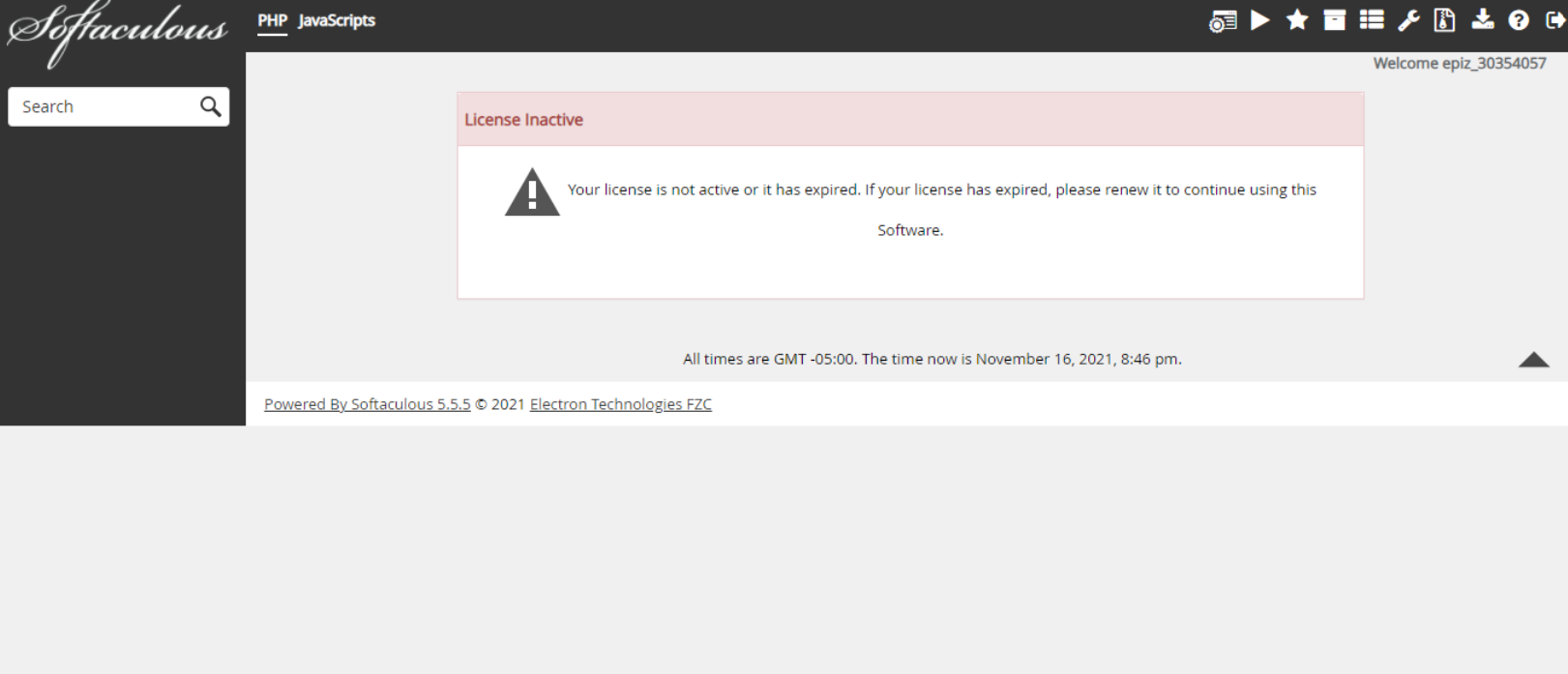
Softaculous license errors can affect access to premium features or indicate that the license is not associated with the expected server or hosting account.
How to Troubleshoot a Softaculous License Problem
- Identify the license type. A server-level Softaculous license and an end-user license are not interchangeable in every situation.
- Verify the license details. If you administer the server, review the license information in the Softaculous Admin Panel. End users should check the relevant license information in their control panel or Softaculous account.
- Check the server IP. A license may be associated with a particular IP address. If the server IP changed during a migration, or the license was issued for another IP, the license may not validate correctly.
- Confirm the account association. Some end-user licenses are restricted to a particular control-panel account.
- Request a refresh or reissue. Use the official Softaculous client area or contact Softaculous support if the license details do not match your server or account.
Administrators with the appropriate server access can use Softaculous’s documented command-line license check on supported versions:
php /path/to/softaculous/cli.php -lThe actual path to cli.php depends on the installation, so confirm it with your server administrator before running the command.
Official references:
- Softaculous Licensing
- Check License Details
- Install Softaculous Enduser License and Understand Error Messages
If you use shared hosting and do not administer the server, ask your hosting provider to verify the server-level license. Do not attempt to edit server license files or change the server IP yourself.
Script Installation Failures
A script installation can fail even when Softaculous opens normally. The problem may involve downloading the application package, extracting files, preparing the database or writing files to the selected directory.
Step-by-Step Troubleshooting
Step 1: Record the exact failure.
Note the application name, domain, installation directory, approximate time and full error message. If the installer provides an error log or detailed result, save it before retrying.
Step 2: Check available storage.
Review cPanel Disk Usage and any account limits. If the installation requires temporary extraction space, the free space needed may exceed the final size of the application.
Step 3: Verify database details.
If the application uses MySQL or MariaDB, check that the database and database user exist where required. Confirm that the user has the necessary privileges. On cPanel, use MySQL Databases or the database management interface available to your account.
Do not paste database passwords into public forums or unsecured support messages.
Step 4: Check directory ownership and permissions.
The installation directory must be accessible to the correct account and writable by the process performing the installation. Incorrect ownership can prevent file creation even when the numeric permission values appear reasonable.
Do not set every file and directory to 777. This grants overly broad permissions and can introduce security vulnerabilities. Ask your hosting provider to correct ownership or permissions if you do not have the required access.
Step 5: Check for conflicting files or installations.
If the destination already contains WordPress or another application, determine whether it is an existing installation before retrying. Check for a conflicting directory, database or URL configuration.
Step 6: Check package downloads and server connectivity.
If the logs indicate that a package could not be downloaded, extracted or reached, the problem may be related to network access, a mirror connection or server configuration. Server administrators can verify access to the required Softaculous download endpoints using the official system-requirements documentation.
Step 7: Escalate with useful evidence.
If the same error persists, provide your hosting provider with the exact message, timestamp, target domain and the steps already attempted. This helps the support team locate the relevant server-side event without repeatedly guessing at possible causes.
Avoid repeatedly retrying an installation that may already have created some files or database tables. Confirm the state of the target directory and database first.
Backup and Restore Problems
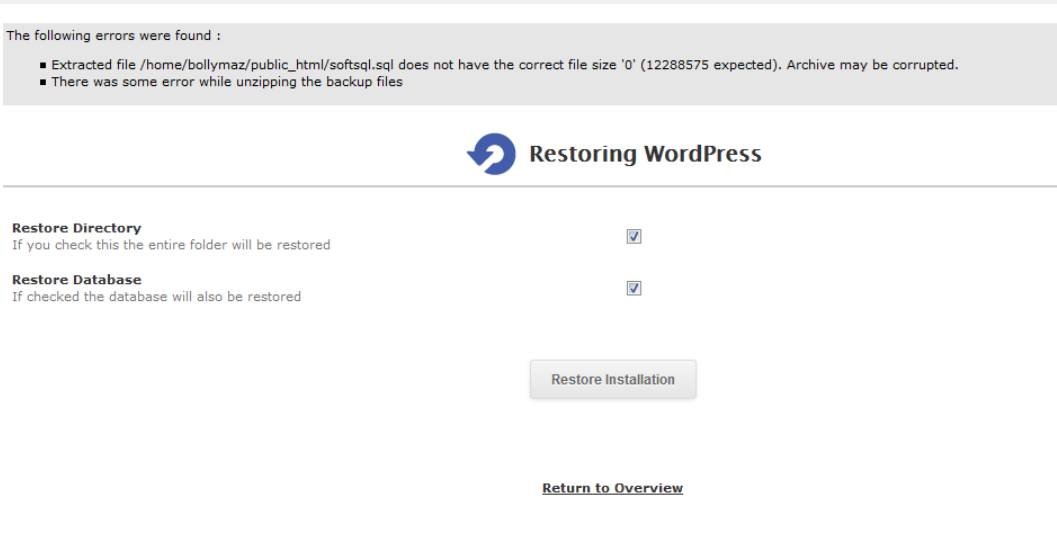
Softaculous backup and restore failures deserve special attention because an unsuccessful restore can leave a website incomplete or unavailable.
Backup Fails or Stops Before Completion
Check the following:
- Available disk space and account storage limits.
- Whether the backup destination is writable.
- Whether the source website and database are accessible.
- Whether the operation reaches an account resource limit or times out.
- Whether the log reports a specific file, database or archive error.
A backup can require extra temporary storage while files and database data are packaged. Free space should be checked before starting a large operation.
Restore Fails or Produces an Incomplete Website
- Confirm that the backup file exists and has a plausible size.
- Verify that the backup belongs to the intended website and is from the correct date.
- Check whether the archive is complete and can be read.
- Confirm that the destination has enough space.
- Review the restore error to determine whether the failure concerns files, the database or the destination configuration.
If the site is live, take a fresh backup of its current state before making further changes where possible. Restoring an older backup can replace newer files or database content, including recent orders, posts or customer data.
If the archive appears corrupted, do not repeatedly restore it over the live website. Locate another known-good backup or test the recovery in a separate environment first.
Verify the Restored Website
After a successful restore, check the homepage, important internal pages, login functionality, database-driven features, media files and forms. For WordPress, confirm that the site URL and database connection are correct.
Keep an independent backup where possible. A backup stored only on the same account or server may be unavailable if that account becomes inaccessible.
Slow Performance
Softaculous may load slowly or take a long time to install, update or back up an application. The cause could be browser-side, account-level or server-side, so identify which operation is slow before making changes.
Check Account Resource Usage
In cPanel, review any available resource-usage information. Depending on the hosting environment, you may be able to identify CPU, memory, process or disk-I/O limits.
If your account repeatedly reaches its allocated limits during installations or backups, ask your provider to confirm which resource is being exhausted.
Check Storage and Database Activity
Low free space can slow down or interrupt file operations. Database problems may also affect application installations and updates.
Check the available storage and review the relevant database or application error messages. Avoid running database repair or optimization commands without a backup and a clear reason.
Separate a Slow Interface from a Slow Installation
If the Softaculous interface itself is slow, test a current browser, try another browser and check whether other cPanel pages are also responding slowly.
If the interface is responsive but an installation stalls, investigate the installation log, package download, extraction, database creation and file-writing stages instead.
When Should You Upgrade Your Hosting?
If your website consistently exceeds its shared hosting resources, a higher-capacity plan or a VPS may be worth considering. First, confirm that the issue is genuinely resource-related rather than a permission, compatibility or configuration problem.
For websites that need cPanel and Softaculous, OffshoreDedi shared hosting provides an option to review alongside your current plan. Compare storage, resource limits and application requirements before migrating.
Compatibility Issues
Compatibility issues occur when the hosting environment does not meet the requirements of the application or its selected version. Softaculous may support installing an application, but that does not mean every available application version is compatible with every PHP or database configuration.
Check PHP Version and Extensions
In cPanel, open MultiPHP Manager to review the PHP version assigned to the domain, if the feature is available.
Compare that version and the required PHP extensions with the official requirements for the application version you want to install. A missing extension or unsupported PHP version can cause installation errors or prevent the application from working after installation.
Do not change the PHP version for every domain at once. Make changes to the intended domain and confirm compatibility with its existing applications first.
Check Database Requirements
Some application versions require particular MySQL or MariaDB versions or database features. If the installation fails during database creation or connection, check the exact error before assuming the database server needs an upgrade.
On shared hosting, database server upgrades and service-level configuration are usually managed by the hosting provider.
Update Softaculous Carefully
If the Softaculous interface or script catalogue appears outdated, ask the server administrator to check whether the installed version and script data are current. Do not attempt a server-level Softaculous update from a standard cPanel account.
Check the Application Documentation
When an installation repeatedly fails for one script but other scripts install successfully, the issue may be specific to that application’s requirements or installation process. Compare the required PHP version, extensions, database version and storage needs before changing unrelated server settings.
User Interface Glitches
A broken or incomplete Softaculous interface can result from browser caching, JavaScript errors, a browser extension, a control-panel problem or a server-side issue.
- Reload the page and sign in to cPanel again.
- Open Softaculous in a current browser or a private browsing window.
- Temporarily disable a browser extension only if you suspect it is interfering with the page.
- Confirm that JavaScript is enabled.
- Check whether other cPanel features are also failing.
- If the problem persists across browsers, ask your hosting provider to inspect the control-panel and Softaculous logs.
Browser troubleshooting is a useful first step, but a blank page or server error that persists across browsers should not automatically be treated as a browser issue.
Security Concerns
Security controls can sometimes block an installation or update operation, but disabling a firewall or security system is not a safe default troubleshooting step. It can expose your website or hosting account without proving that security software caused the problem.
Review the Security Logs First
If an installation fails at a particular stage, record the timestamp and the exact error. Ask your hosting provider or server administrator to check the relevant firewall, web application firewall (WAF), malware protection or server logs for a matching event.
A logged block or rule match is stronger evidence than assuming that security software is responsible because an installation failed.
Use a Narrowly Scoped Fix
- Ask the administrator or hosting provider to review the specific rule and event.
- Use a narrowly scoped exception only if it is justified and supported by the security system.
- Limit the exception to the necessary request, resource or duration.
- Test the operation and confirm that the intended security protections remain enabled.
- Remove any temporary exception once it is no longer required.
Do not disable the entire firewall, malware scanner or account-isolation mechanism just to complete an installation.
Maintain Secure Permissions and Credentials
Use strong, unique passwords for your control panel and application accounts. Enable multi-factor authentication where available, keep applications updated and grant users only the access they need.
If you suspect malware or unauthorized changes, preserve relevant logs and contact your hosting provider or security administrator. Avoid deleting suspicious files before their role and impact have been assessed.
Cron Jobs and Automatic Update Problems
Scheduled tasks can be involved in application maintenance, backup routines and automated updates. When a scheduled task does not run as expected, distinguish between a cron scheduling problem and an application-level failure.
Check the Cron Configuration
In cPanel, open Cron Jobs and verify the configured schedule and command. Check that the task has not been disabled, that its command points to the intended script and that any required paths are correct.
Do not copy a cron command from another server without confirming the PHP executable, script path, account permissions and application requirements for your environment.
Check Notifications and Execution Errors
Review cron notification emails and any available application logs. If the task runs but the update fails, the cause may be PHP incompatibility, a permissions issue, insufficient storage, a network problem or an application-specific error.
If a task never appears to execute, ask the hosting provider to confirm whether cron is running and whether the hosting account is permitted to run the task at the configured interval.
Check Automatic Updates Separately
For WordPress, confirm that the relevant update settings are enabled and that the application can write to the necessary files. If an update fails, record the WordPress version, the item being updated and the displayed error.
Before changing scheduled tasks or retrying a failed update, take a backup where possible. Avoid creating duplicate scheduled jobs simply because the first job’s status is unclear.
Frequently Asked Questions
Why Is Softaculous Not Installing WordPress?
Common causes include an incorrect domain or directory, insufficient disk space, directory ownership or permission problems, database errors, incompatible PHP settings and failed package downloads. Start with the exact installation error, then check the target path, account limits and relevant logs.
For a root-domain WordPress installation, leave the In Directory field empty. Before retrying, confirm that the target does not already contain an existing website.
Where Are Softaculous Error Logs Stored?
Softaculous documents /var/softaculous/error_log.log for fatal errors and /var/softaculous/logs/softaculous.log for activity recorded according to the configured log level.
These are administrator-side server paths. If you only have a cPanel account, check the error information available to you and ask your hosting provider to inspect the Softaculous logs.
How Do I Fix an Invalid Softaculous License?
Verify the license type and details, check whether the license is associated with the correct server IP or control-panel account, and use the official Softaculous client area to request a refresh or reissue if necessary. Server administrators can also check license information through the Softaculous Admin Panel.
Can Insufficient Disk Space Cause Softaculous Errors?
Yes. Insufficient storage can prevent package downloads, file extraction, installations, backups and restores. Check cPanel Disk Usage and any applicable account limits before retrying the operation.
Should I Disable My Firewall If Softaculous Fails?
No, not as a first step. Check the error message and relevant security logs. If a security rule is confirmed to be blocking a legitimate operation, ask the administrator to apply a narrowly scoped and temporary exception where appropriate. Keep other protections enabled.
Why Do Softaculous Automatic Updates Fail?
Possible causes include incorrect cron configuration, a failed scheduled task, insufficient permissions, incompatible PHP settings, storage limits or an application-level update error. Check the cron configuration and notification emails, then inspect the relevant application logs.
Why Does a Softaculous Restore Fail?
A restore may fail because the backup archive is incomplete, the destination lacks space, permissions prevent files from being written or the database operation encounters an error. Verify the backup and destination before retrying, and protect the current live website with a fresh backup where possible.
When Should I Contact My Hosting Provider?
Contact your provider when the error points to a server-level license, inaccessible logs, a database service issue, incorrect file ownership, a resource limit, a cron service problem or a firewall rule you cannot inspect. Include the exact error, affected domain, timestamp and troubleshooting steps already completed.
Final Thoughts
Most Softaculous problems become easier to diagnose when you identify the stage at which the failure occurs and check the corresponding logs, hosting limits and application requirements.
Start with the installation details, disk space and exact error message. Then investigate the relevant PHP, database, permission, license, backup or cron settings. Avoid broad changes such as setting permissions to 777 or disabling security protections without evidence.
If the issue requires server-level access, provide your hosting provider with the error and diagnostic details rather than repeatedly retrying the same operation. A targeted fix is safer, faster and less likely to create additional problems.
If you are evaluating a hosting environment for websites that rely on cPanel and Softaculous, review the available shared hosting plans from OffshoreDedi and compare their included features and resource limits with your website’s requirements.