Are you planning to migrate from cPanel to Plesk? Moving your websites, databases, email accounts and DNS configuration to a new hosting control panel requires careful preparation. A successful migration involves more than copying website files: you must verify compatibility, transfer data, test services and switch traffic without losing important updates.
This guide explains how to migrate from cPanel to Plesk using Plesk Migrator or a manual process. It also covers pre-migration checks, DNS TTL planning, email validation, post-migration testing and rollback procedures to help minimize downtime.
Understanding the Basics of cPanel and Plesk
cPanel and Plesk are hosting control panels that simplify website, database, email and server management. Although both provide similar core functions, their interfaces, configuration structures and server-management workflows differ.
cPanel is widely used by shared hosting providers and website owners to manage domains, files, databases, email accounts and other hosting features. Plesk provides comparable functionality and supports website management, multiple PHP versions, scheduled tasks, SSL certificates and tools such as WordPress Toolkit, depending on the installed version and extensions.
Moving between these control panels requires you to check how your existing hosting environment maps to the destination. Some website content and account data can be migrated automatically, while server-wide settings, custom software and specialized configurations may require manual recreation.
Before choosing a migration method, identify the services your websites depend on and verify that the destination server can support them.
Pre-Migration Checklist for a Hassle-Free Transition
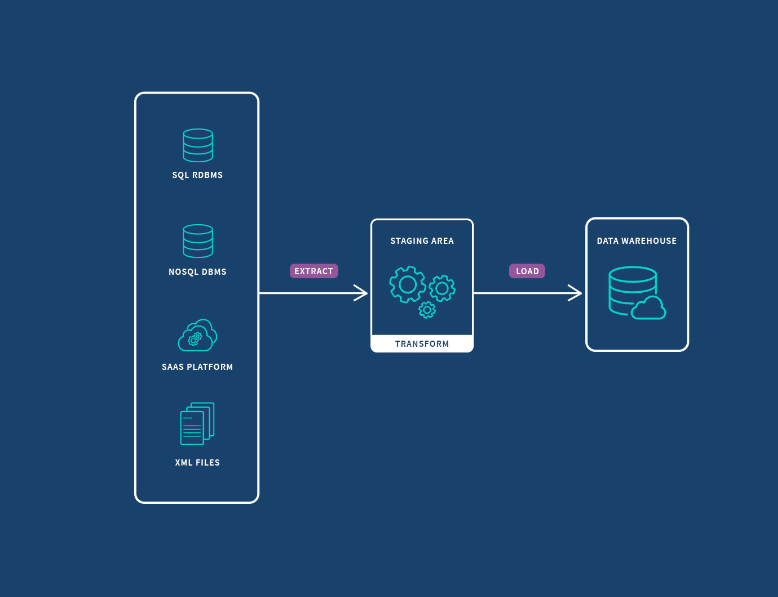
Preparation is essential when moving from cPanel to Plesk. Before transferring any accounts, document the source environment, prepare the destination server and create verified backups. This helps you identify compatibility problems before they affect a live website.
Preflight Compatibility Checklist
| Area | What to Check | Action Before Migration |
|---|---|---|
| Operating system | Source and destination operating systems and the supported migration path | Confirm compatibility with the current Plesk Migrator documentation. |
| Disk capacity | Total website files, databases, email storage, backups and temporary migration space | Allow enough free space on the destination and for temporary database dumps. |
| PHP versions | PHP version, handlers, extensions and per-domain configuration | Match each website to a supported PHP version and install required extensions. |
| Web applications | WordPress, custom scripts, frameworks, plugins and application dependencies | Document requirements and test critical applications on the destination. |
| Databases | Database engines, versions, database names, users and privileges | Confirm the required database service is installed, running and compatible. |
| Mailboxes, aliases, forwarders, autoresponders, filters, quotas and stored messages | Record mail settings and plan how new messages will be handled during cutover. | |
| DNS zones | A, AAAA, CNAME, MX, TXT, SPF, DKIM, DMARC, SRV and other required records | Export or document the existing zone and verify the destination values. |
| SSL certificates | Certificate coverage, expiration, private keys and renewal method | Prepare valid certificates or a plan to issue them on the destination. |
| Cron jobs | Scheduled commands, execution intervals, PHP paths and environment variables | Record every task and recreate it using the destination’s supported scheduler. |
| Custom applications | External API integrations, custom binaries, environment variables and special services | Identify dependencies that Plesk Migrator may not transfer automatically. |
| Backups | Website files, databases, email and critical configuration | Create independent backups and verify that the files can be accessed. |
| Access and connectivity | Administrator credentials, SSH access and required network ports | Verify source and destination access before starting the migration. |
Back Up the Source Environment
Create a complete backup of every website, database and mailbox that must be migrated. Keep a separate copy outside the source server so that a source-side failure does not destroy your only recovery option.
Record important configuration details, including:
- Domain names, document roots and subdomains.
- Database names, users and application connections.
- Email accounts, aliases, forwarding rules and mail routing.
- DNS records and current authoritative nameservers.
- PHP versions, extensions and custom configuration.
- Cron jobs, redirects, SSL settings and external integrations.
Do not assume that a successful file backup includes databases or email. Verify each required data category separately.
Check Disk Space and Server Requirements
Ensure the Plesk destination has sufficient capacity for website files, databases, mailboxes and temporary migration data. Plesk’s migration process may need temporary space to create or store a dump of the largest database being transferred.
Also verify that the destination has the necessary database services, PHP handlers and supported software installed. Consult the official Plesk Migrator installation and prerequisites documentation for current requirements and network connectivity details.
Plan DNS Changes Before Migration
Review the existing DNS zone and identify which records must change when the website moves. This includes the website’s A or AAAA record, mail-related MX records and any TXT, CNAME or service records used by your applications.
If you control the DNS zone, lower the TTL of relevant records in advance, commonly to around 300 seconds where appropriate. Do this sufficiently ahead of the migration for the previous TTL to expire. Lowering the TTL immediately before switching the IP address does not remove the caching period already in progress.
Record the original TTL values and DNS settings so you can restore them if the migration needs to be reversed. A shorter TTL can help clients pick up changes sooner, but it cannot guarantee instant propagation or override all resolver caching behavior.
Choosing the Right Migration Method
The best method depends on the number of websites, server access, application complexity and the amount of data that needs to be transferred.
Method 1: Plesk Migrator
Plesk Migrator is generally the preferred option when migrating supported hosting accounts from cPanel to Plesk. It can transfer supported account and website data, including files, databases and mail content, depending on the source configuration and migration options.
However, it does not transfer every server-wide setting. PHP handlers and certain security or service configurations may need to be recreated on the destination. Review the official Plesk Migrator introduction and migration scope before relying on automatic transfer for every part of your environment.
Method 2: Manual Migration
Manual migration gives an administrator more control over files, databases, mail and application configuration. Website files can be transferred using an appropriate file-transfer method, while databases can be exported and imported using supported database tools.
This approach requires careful handling of database users, permissions, configuration files, email data, cron jobs and DNS records. It is best suited to administrators who understand the source and destination environments or who need to handle components that the automated migration does not cover.
Method 3: Professional Migration Assistance
For large websites, multiple hosting accounts, high-volume email systems or applications with custom dependencies, professional migration assistance may reduce operational risk. A migration specialist can review the environment, identify incompatibilities, plan the cutover and help test the destination before traffic is redirected.
Whichever method you choose, maintain access to the source environment until the migration has been verified and the rollback window has passed.
Step-by-Step Guide to Migrating with Plesk Migrator
The following workflow uses the current Plesk Obsidian interface as its reference. Menu names can differ between versions, and some options depend on the installed extensions and source configuration.
Step 1: Prepare the Destination Plesk Server
Log in to the destination server’s Plesk panel with administrator access. Confirm that the server is licensed, the required web and database services are installed, and sufficient disk space is available.
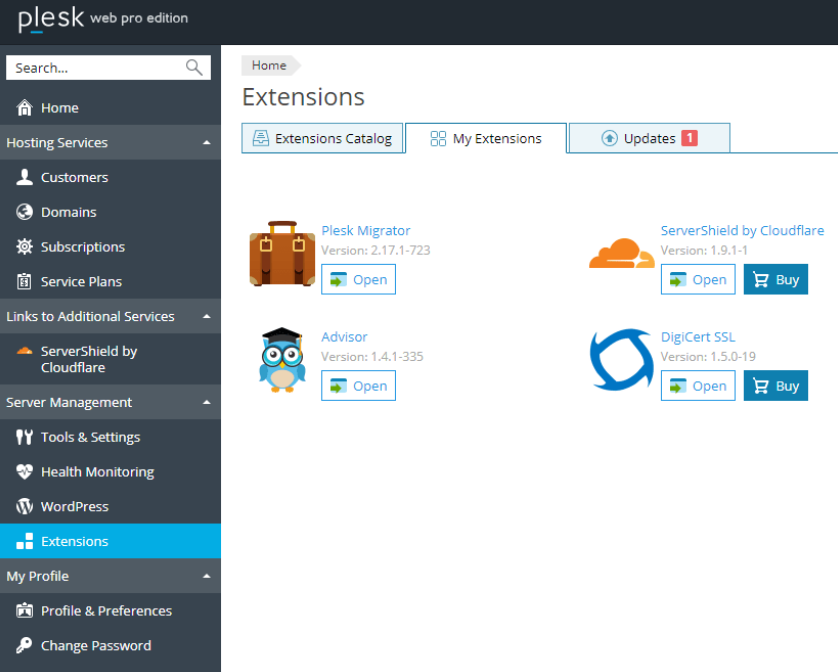
Install the Plesk Migrator extension if it is not already available. Consult the official Plesk Migrator installation instructions for the supported installation procedure.
Before proceeding, confirm that the source server can be reached from the destination and that required connections are permitted by the network and firewall configuration.
Step 2: Open Plesk Migrator
In Plesk Obsidian, the documented interface path is:
Server Management → Extensions → Plesk Migrator → Start a New Migration
Select the hosting panel installed on the source server. For this guide, select cPanel. If the extension or menu is missing, verify that Plesk Migrator is installed and available to the administrator account.
Step 3: Enter the Source Server Details
Provide the source server’s IP address or hostname and the required connection details. For a Linux cPanel source, Plesk Migrator typically requires privileged access through SSH. Depending on the supported configuration, authentication may use a password or SSH keys.
Check the following before continuing:
- The source server address is correct.
- The SSH port is correct and reachable.
- The credentials have the necessary privileges.
- Network rules permit the required connection.
- The source has sufficient temporary space for migration operations.
Do not share administrator credentials through unsecured channels. Use the authentication method recommended by your server administrator and the current Plesk documentation.
Step 4: Prepare and Review the Migration
Start the preparation stage. Plesk Migrator will attempt to connect to the source and discover supported hosting objects, such as subscriptions, domains and related content.
If preparation fails, check the displayed error before retrying. Connection failures may indicate incorrect server details, insufficient privileges, a blocked network connection or an unsupported source configuration.
Review the discovered objects carefully. Confirm that all required subscriptions and associated domains are included. Do not assume that every server-level setting, custom service or standalone account will be transferred automatically.
Step 5: Select the Content to Transfer
Review the migration selections presented by the installed Plesk Migrator version. Depending on the source and migration mode, the available options may cover hosting subscriptions and their associated websites, databases and mail content.
Check the selection against your pre-migration inventory. Pay special attention to:
- Domains and subdomains.
- Website files and document roots.
- Databases and associated application configurations.
- Mailboxes and stored email content.
- Aliases, forwarding and other mail settings.
- Custom applications or services that require separate handling.
Some migration objects are grouped together. For example, Plesk Migrator’s documented behavior does not always allow individual domains within a subscription to be selected separately. Review the current migration scope before deciding how to organize the transfer.
Step 6: Run the Migration and Review Errors
Start the migration and monitor its progress. Allow the process to complete, then review its report for failed objects, warnings or items requiring manual action.
Do not treat a completed migration task as proof that every website and service is working. The migration report should be combined with application-level tests, email checks and DNS validation.
If an object fails, identify whether the problem relates to permissions, database compatibility, storage, unsupported configuration or network access. Resolve the specific cause before repeating the affected transfer.
Step 7: Recreate Settings That Were Not Migrated
After the content transfer, compare the destination against your pre-migration checklist. Plesk Migrator does not automatically reproduce every server-wide setting.
Review and configure the following where applicable:
- PHP handlers, versions and extensions.
- Custom PHP directives and application environment settings.
- Cron jobs and scheduled maintenance tasks.
- Firewall and security rules.
- Custom web-server directives and rewrite rules.
- External integrations, API connections and application secrets.
- SSL certificate issuance and renewal.
- DNS records and mail routing.
Test each change carefully. A configuration that worked on cPanel may need to be adapted to Plesk’s directory layout, service management or web-server configuration.
Official reference: Plesk Migrator known issues and limitations.
DNS Cutover and Downtime Minimization
DNS cutover is one of the most important stages of a control-panel migration. A site may be working correctly on the destination while visitors continue reaching the old server because DNS records are cached or have not yet been updated.
1. Lower DNS TTL in Advance
Where you control the authoritative DNS zone, lower the TTL of the records that will change before the migration window. A TTL of 300 seconds may be suitable for some migrations, but use a value appropriate for your DNS provider and operational requirements.
Make the change early enough for the previous TTL to expire. Keep a record of the original values so they can be restored after the migration is stable.
2. Complete the Initial Data Transfer
Transfer the website files, databases and email data before changing public DNS. Test the destination using an appropriate temporary hostname, staging environment or local hosts-file override where practical.
Check that the site works on the destination IP before directing real visitors to it. Verify application configuration, database connectivity, SSL readiness and important user workflows.
3. Plan for Data Changes During Cutover
Some websites continue to receive new data while the migration is in progress. Examples include online stores, membership sites, forums, booking systems and websites that accept form submissions.
If the source and destination both accept writes, their data can diverge. A DNS change alone does not synchronize database transactions or prevent users from reaching the old server.
For applications that cannot tolerate data loss or conflicting writes, schedule a short maintenance window or temporarily place the application into read-only mode where supported. Complete a final synchronization of changed files, databases and mail data using a tested procedure.
For email, define which server is authoritative during the cutover and plan how messages arriving at the old server will be handled. Do not shut down the old mail service immediately after changing MX or website records.
4. Change DNS Records
Once the destination has passed pre-cutover testing, update the relevant DNS records with the authoritative DNS provider. This may include A or AAAA records for the website, as well as mail-related records if mail hosting is also moving.
Do not change nameservers unless the migration plan requires it. If nameservers are changing, recreate and verify the complete DNS zone at the new provider before delegating the domain.
Use a trusted DNS lookup tool to verify the authoritative records and compare answers from multiple resolvers. Cached records may continue directing some visitors to the source until their TTLs expire.
5. Monitor Both Servers During Propagation
During the cutover period, monitor the source and destination for traffic, application errors, incoming email and unexpected changes. Some users may continue reaching the old server for a period of time.
Keep the source available and avoid making unrelated changes until the destination is stable. If both environments receive writes, follow the planned reconciliation process before retiring the source.
Post-Migration Acceptance Checklist
Use this checklist to confirm that the migration is ready for normal operation. Test each website and service on the destination rather than relying solely on the migration tool’s completion status.
| Test | What to Verify | Pass Condition |
|---|---|---|
| HTTP | Open the website over HTTP. | The site loads or redirects according to the intended configuration. |
| HTTPS and SSL | Test HTTPS, certificate validity, hostname coverage and redirects. | The correct certificate is served and no unexpected certificate warnings appear. |
| Website content | Check the homepage, key pages, images, downloads and media. | Important content loads without missing files or server errors. |
| Databases | Test application database connections, queries and write operations. | Data is present and normal application operations work as expected. |
| Forms and transactions | Submit forms and test checkout, booking or login flows where relevant. | Submissions and transactions complete without duplicate or missing data. |
| Email sending | Send messages from migrated mailboxes and website forms. | Messages are accepted and reach their intended recipients. |
| Email receiving | Send test messages from an external account. | Messages arrive in the correct mailbox and mail routing works. |
| DNS | Check A, AAAA, CNAME, MX and relevant TXT records. | Records resolve to the intended services and values. |
| SPF, DKIM and DMARC | Check the domain’s email authentication configuration. | Records match the sending setup and test messages authenticate as expected. |
| Cron jobs | Verify scheduled tasks, execution paths and run results. | Required tasks execute at the expected times without errors. |
| Redirects and permalinks | Test important URLs, rewrite rules and canonical redirects. | Expected URLs resolve without redirect loops or unexpected 404 errors. |
| Applications and integrations | Test APIs, plugins, external services and custom scripts. | Critical integrations authenticate and respond correctly. |
| Backups | Confirm a new backup can be created and stored independently. | The backup completes and the recovery process is documented. |
| Monitoring and logs | Review application, web-server, database and mail errors. | No unresolved critical errors remain after cutover. |
Rollback Plan: What to Do if the Migration Fails
A migration plan should include a rollback procedure before the cutover begins. Keeping the old server active provides a recovery option, but it does not automatically make rollback safe if the destination has already received new data.
Before Cutover
- Keep verified backups of website files, databases and email.
- Record the original DNS records, nameservers and TTL values.
- Keep the source server and its services available.
- Document the procedure for restoring DNS and returning traffic to the source.
- Identify which applications can be placed into maintenance or read-only mode.
- Define who is responsible for deciding whether to continue or roll back.
If the Destination Fails Before Receiving Live Traffic
If testing fails before public DNS is changed, keep the source serving visitors. Fix the destination issue and repeat the relevant tests. There is usually no need to change public DNS simply because a migration attempt has completed.
If the Destination Fails After Cutover
If the destination is unstable after traffic has moved, assess whether returning traffic to the source is safe. Restore the original DNS records or nameserver configuration as appropriate, but remember that cached DNS answers may continue directing some users to the destination for a period of time.
Important: If users have submitted orders, updated profiles, published content or sent email on the destination, switching DNS back does not copy that new data to the source. Reconcile database changes, uploaded files and email before allowing both environments to accept writes independently.
Where possible, stop new writes during recovery, preserve the destination’s current data and use a tested synchronization or recovery procedure to avoid losing changes. If data consistency cannot be guaranteed, keep the affected application in maintenance mode while the issue is investigated.
When Is It Safe to Retire the Source?
Do not delete the old server immediately after the first successful test. Keep it available for an agreed observation period while you confirm website behavior, email delivery, DNS resolution, scheduled jobs, application integrations and backup recovery.
Retire the source only after the destination has passed acceptance checks, any data created during cutover has been reconciled, and the rollback window has been formally closed. Retain the required backups according to your recovery and data-retention policy.
Common cPanel to Plesk Migration Challenges
Application Compatibility Problems
Some applications depend on a particular PHP version, extension, file path or server configuration. If a website fails after migration, compare the source and destination settings and review the application and web-server logs before making changes.
Database Import or Connection Errors
Database problems may result from unsupported versions, missing privileges, incorrect credentials, character-set differences or incomplete imports. Verify that the required database service is available and that the application uses the correct destination database details.
Email Delivery Problems
Mail migration can involve more than copying mailbox contents. Review aliases, forwarders, filters, authentication records, MX records and the intended mail-routing configuration. Send and receive test messages from external accounts before considering the mail migration complete.
Missing Cron Jobs or Custom Configuration
Scheduled tasks, custom web-server directives and server-level security settings may need to be recreated manually. Compare the destination against your original configuration inventory and test each task or setting after it is recreated.
DNS and SSL Errors
Incorrect DNS records can send visitors or mail to the wrong server. Missing or invalid certificates can cause HTTPS warnings even when the website itself is running correctly. Verify DNS resolution, certificate coverage, renewal and redirects as part of the acceptance process.
Data Differences After Cutover
When both servers receive changes during migration, the destination and source can contain different versions of the same data. This is especially important for e-commerce, membership and email systems.
Use a defined final-sync procedure and avoid accepting writes on both servers unless the application has a reliable method for synchronizing them. If rollback is required, reconcile the newer data before reopening the source to normal traffic.
Making the Most of Your New Plesk Environment
After the migration is stable, review the features available in your Plesk installation and configure them according to your needs.
- WordPress Toolkit: Where available, use it to manage supported WordPress installations, updates and staging workflows.
- PHP management: Select compatible, supported PHP versions and install the extensions required by each application.
- Scheduled tasks: Recreate and monitor cron jobs or scheduled tasks that are required for application maintenance.
- SSL management: Configure certificates and verify that renewal is working.
- Security: Review access controls, updates, firewall rules and other security features supported by the destination.
- Backups: Configure independent backups and test the recovery procedure.
- Monitoring: Review logs and performance metrics so that migration-related errors are identified early.
Remember that Plesk’s available features depend on the edition, installed extensions, operating system and hosting provider configuration. Verify the features you need before relying on them for production workloads.
Choosing the Right Hosting Infrastructure
A control-panel migration is also an opportunity to review whether your current hosting resources meet your website’s needs. The right destination depends on traffic, storage, application requirements, administrative access and the amount of control you need over the server.
If you need more control over the operating system and allocated resources, review OffshoreDedi VPS hosting. For workloads that require an entire physical server and dedicated hardware, compare dedicated server options.
Before ordering or migrating, confirm the required control panel, operating system, PHP and database compatibility, email requirements, available storage and migration support. A suitable server should be selected based on the needs of your applications rather than simply choosing the largest available plan.
Frequently Asked Questions
Can I migrate from cPanel to Plesk without downtime?
Some migrations can be completed with little or no noticeable downtime, but zero downtime cannot be guaranteed for every application. The result depends on data size, application behavior, DNS caching, email routing and whether users can continue writing data during the migration. Pre-migration testing, an initial transfer, a final synchronization and a carefully planned cutover help reduce disruption.
Does Plesk Migrator transfer websites, databases and email?
Plesk Migrator can transfer supported hosting content, including website files, databases and mail content, depending on the source environment and migration configuration. However, not every server-wide setting or custom service is transferred. Review the current Plesk migration documentation and validate each required component after the transfer.
How do I minimize DNS propagation delays?
Lower the TTL of relevant DNS records in advance, allow the previous TTL to expire, test the destination before cutover and change the records at the appropriate time. Keep the old server available while caches expire. DNS changes are not always immediate, so monitor both environments during the transition.
Should I change nameservers when migrating from cPanel to Plesk?
Not necessarily. If your existing DNS provider will continue hosting the zone, you may only need to update specific records such as the website’s A or AAAA record. If you are moving DNS hosting as well, recreate and verify the complete zone before changing nameservers.
What happens to email during a cPanel to Plesk migration?
Mailboxes and stored messages may be transferred by the migration tool, but mail settings and routing still need to be verified. Check aliases, forwarders, MX records, SPF, DKIM and DMARC. Plan for messages arriving at the old server during DNS propagation and do not retire the old mail service until delivery has been validated.
What should I do if the migration fails?
Review the migration report and logs, identify the failed component and fix the underlying cause. If the destination cannot be made reliable before cutover, keep the source serving traffic. If failure occurs after cutover, use your rollback plan, account for DNS caching and reconcile any new data created on the destination before returning to the source.
When can I delete the old cPanel server?
Wait until the destination passes website, database, email, DNS, SSL, cron and application tests. Confirm that backups are available, data changes have been reconciled and the rollback window has closed. Retain the source for the agreed observation period rather than removing it immediately after migration.
Final Thoughts
Migrating from cPanel to Plesk involves more than transferring files. A reliable transition requires compatibility checks, verified backups, correct database and email configuration, DNS planning, application testing and a clear rollback strategy.
Use Plesk Migrator where it supports your source environment, review the migration report carefully and recreate settings that are not transferred automatically. Lower DNS TTL in advance where appropriate, perform a final data synchronization, validate all critical services and keep the source available until the destination is proven stable.
With a documented plan and a structured acceptance checklist, you can reduce migration risks and move your websites to the new hosting environment with greater confidence.