Fix the “Cannot Read License File” Error in cPanel & WHM
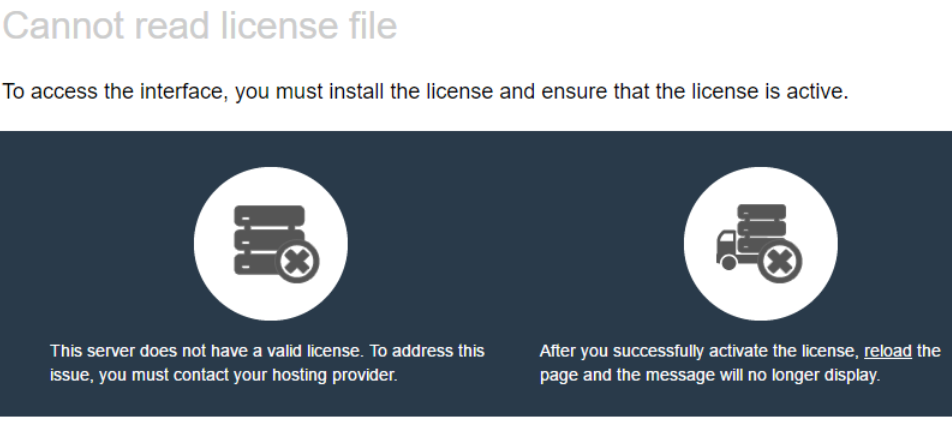
If WHM is throwing “Cannot Read License File” when you try to log in, this is a cPanel licensing problem, not a missing or broken file in the everyday sense. It almost always comes down to one of a handful of causes: the license isn’t issued to your server’s current public IP, the license itself has expired or gone invalid, the server can’t reach cPanel’s licensing infrastructure, or the system clock has drifted. This guide walks through the exact checks to run, in order, on a Linux server running cPanel/WHM.
Quick checklist
- Licensed IP matches the server’s current public IP
- License status is “Active” per cPanel’s verification service
- Server can resolve and reach cPanel’s licensing infrastructure
- System date/time is correct and NTP is syncing
- Outbound access to the licensing service isn’t blocked by a firewall rule
Step 1: Confirm the Server’s Public IP
cPanel licenses are issued to a specific public IP address. If that IP has changed — after a migration, a reissued dedicated IP, or a new VPS deployment — the license on file no longer matches what the server is presenting, and WHM will refuse to load. Check the IP the server is actually using for licensing with:
# Show the public IP used for cPanel licensing
curl -w '\n' -s http://myip.cpanel.net/v1.0/
Compare this against the IP your license is actually issued to.
Step 2: Check the License Status
Use cPanel’s own license verification service to confirm the license tied to that IP is valid and active. Enter the server’s public IP on cPanel’s verification page and check the returned status. A license can show as expired, suspended, or simply not matching the IP you checked in Step 1 — each points to a different fix (renewal, billing issue, or an IP update, respectively).
Step 3: Refresh the License on the Server
If the license is confirmed valid and active for the correct IP, the next step is to force the server to re-fetch and reapply it. As the root user via SSH, run:
# Refresh the cPanel license
/usr/local/cpanel/cpkeyclt
What to expect: the command contacts cPanel’s licensing servers, rebuilds the local license file, and prints its progress to the terminal, typically ending in a line indicating the update succeeded. Exact wording can vary slightly between cPanel versions, so treat a message confirming the update completed — rather than an exact string — as the signal it worked. If the command instead reports it can’t reach the license server, that points to a connectivity problem, which is Step 4.
Step 4: Verify Name Resolution and Connectivity
If cpkeyclt fails to reach cPanel’s licensing infrastructure, the server may have a DNS resolution problem or a blocked outbound connection. Run a basic sanity check:
# Basic DNS lookup / connectivity sanity check
host auth.cpanel.net
If this fails to resolve, the issue is DNS on the server (check /etc/resolv.conf and upstream resolvers). If it resolves but the connection still times out, move to the firewall check in Step 6.
Step 5: Confirm the Hostname Is Valid and Resolvable
cPanel licensing also expects the server to have a valid, resolvable fully qualified hostname (FQDN). An unset, misconfigured, or non-resolving hostname can interfere with license validation even when the IP and connectivity are otherwise fine. Confirm the hostname is set correctly in WHM’s Basic WebHost Manager Setup and that it resolves both forward (hostname to IP) and, ideally, in reverse.
Step 6: Check System Date/Time and NTP Sync
License validation relies on accurate system time. A clock that has drifted — common after a VM pause/resume, a snapshot restore, or a hypervisor issue — can cause the license check to fail even with a valid license and correct IP. Check the current time and confirm NTP is syncing:
# Check time
date
If the date/time is significantly off, correct it and make sure your NTP service (chronyd or ntpd, depending on your distro) is active and syncing, then re-run cpkeyclt.
Step 7: Check Outbound Firewall/Network Rules
The server needs outbound access to cPanel’s licensing infrastructure, typically over port 80. If a firewall (iptables, firewalld, CSF, or an upstream cloud/network security group) is blocking outbound traffic to cPanel’s licensing hosts, the license check will fail even though the license itself is fine.
Check the relevant firewall configuration for outbound rules affecting port 80 to cPanel’s licensing hosts, and confirm nothing upstream (cloud provider security group, network ACL) is blocking it either. If you temporarily open a rule to test, restore it to its prior state immediately afterward rather than leaving broad outbound access enabled — don’t disable the firewall entirely to troubleshoot this.
Step 8: Reissue the License for a Changed IP
If Step 1 confirmed the server’s current public IP doesn’t match what the license is issued to — commonly the case after migrating to a new VPS or dedicated server, or after a static IP wasn’t carried over from a snapshot — the license needs to be updated or transferred to the new IP through your license provider or cPanel account. Once that’s done, re-run cpkeyclt to pull the corrected license.
Step 9: Confirm the License Type Matches the Environment
Where applicable, confirm the license type (e.g., a VPS-tier license vs. a dedicated-server-tier license, or a specific product tier) actually matches the environment it’s applied to. A mismatched license type can produce the same symptom even when the IP, connectivity, and system time are all correct.
Why This Often Happens After a VPS or Dedicated-Server Migration
Migrations are the single most common trigger for this error. A new server gets a new public IP, but the cPanel license is still tied to the old one — WHM won’t load until the license is updated to match. This is especially easy to miss when a static IP wasn’t explicitly reattached to the new instance, or when a snapshot/image was deployed onto fresh infrastructure with a different assigned IP. If you’ve recently migrated and see this error, Step 1 and Step 8 above are almost always where the fix lies.
Is This a Licensing-Side Issue or a Server-Side Issue?
It helps to separate the two before you spend time troubleshooting the wrong side:
- Licensing-side: the license is expired, suspended for billing reasons, issued to the wrong IP, or the wrong type for the environment. These require action with your license provider or cPanel account — no amount of server-side troubleshooting will fix them.
- Server-side: the license itself is valid and correctly issued, but the server can’t complete the check — due to DNS failure, a blocked outbound connection, an invalid hostname, or clock drift. These are fixed directly on the server using Steps 3 through 7 above.
Running the license verification check in Step 2 first tells you which side of that line you’re on.
When to Escalate
If you’ve worked through Steps 1–9 and the error persists, escalate to your license provider or cPanel support directly. Include:
- The server’s current public IP (from Step 1)
- The output of
cpkeyclt(from Step 3) - The result of the license verification check (from Step 2)
- Confirmation of whether the server was recently migrated
Providing this upfront generally gets you a faster resolution than describing the symptom alone.
If this came up after moving to new infrastructure, or you’d rather have someone confirm the IP, DNS, and license status for you, our team can handle the server-side troubleshooting directly — see our VPS hosting and managed support options.